Filters & Sorting
Written By Yuri P.
A Swipes library with hundreds of ads and no filters is just Pinterest with extra steps. Filters turn the pile into a shortlist.
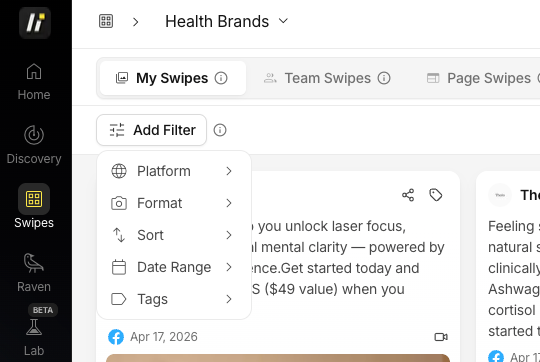
Swipe File filters
Open Swipes and click Add Filter above the grid. Filters apply as removable chips, and you can stack more than one at a time. The available filters are:
Platform: All Platforms, Facebook, TikTok, Google, Instagram, YouTube
Format: Video or Image
Date Range: calendar selector to filter by date saved
Tags: any tag you’ve applied to your swipes
Filters stack and are additive, so you can combine them to narrow things down. Filtering is still being expanded, so expect more options over time.
Sort options
Sort lives in the same Add Filter menu. You can sort your swipes by:
Newest first (default)
Oldest first
Display options
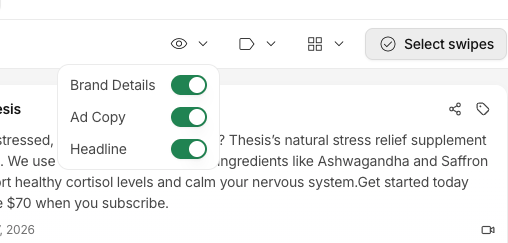
The toolbar above the grid also has a few view controls that aren’t filters but help you scan faster. The eye icon toggles whether Brand Details, Ad Copy, and Headline show on each card, and the columns control changes how many swipes appear per row.
Pro tip
Stack a few filters to build a quick shortlist. For example, Video + last 30 days + Facebook narrows a big library down in a couple of clicks. Don’t browse, query.
FAQ
Can I combine multiple filters?
Yes. Filters stack and are applied together, so adding more filters narrows your results.
Can I filter by ad copy keyword?
Not from the filter menu. Keyword search is a separate tool. Use Search Swipes for text, and combine it with filters by searching first and then filtering the results.