Folders & Boards
Written By Yuri P.
Boards are your launch queue. Folders keep 10 launch queues from looking like one mess.
Get this right early, Swipes scales to thousands of ads, and the only thing that keeps it useful is structure.
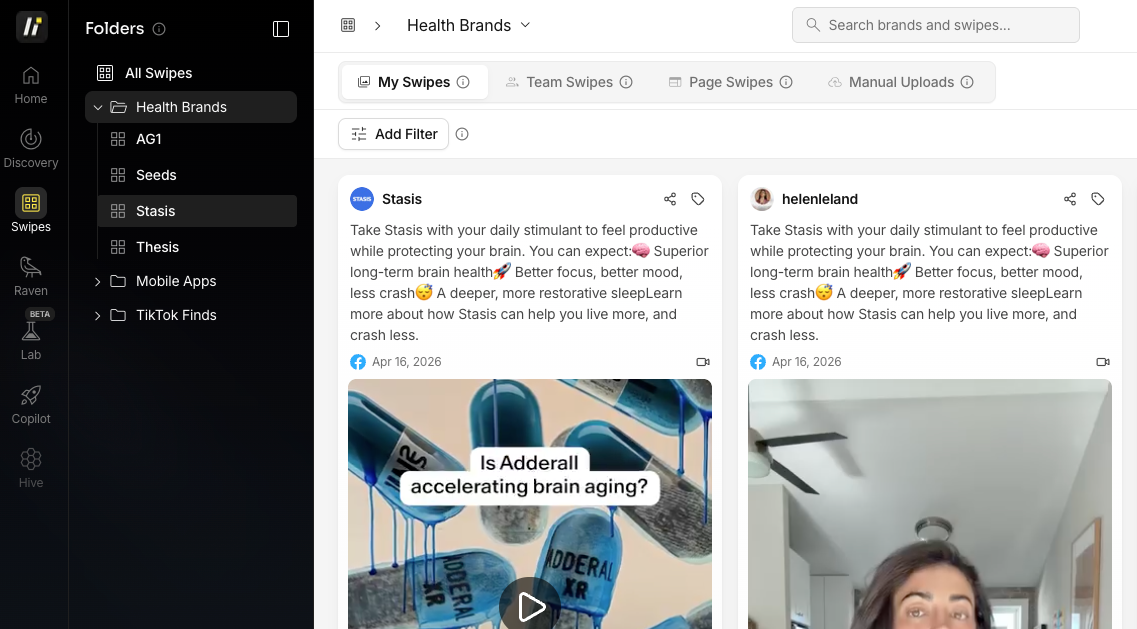
How to use Folders
Folders organize everything inside CopyThief — not just boards.
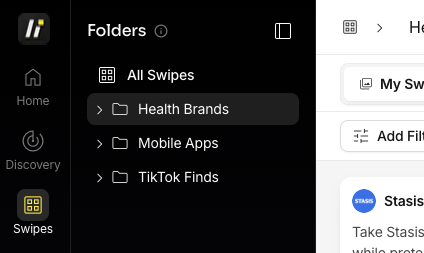
You can put inside a folder:
Boards (from Swipes)
Your or your teams saved ads
Common folder patterns:
Per client account (agencies running multiple brands)
Per offer (e-com running multiple products)
By function (competitors, inspiration, our-winners, test-cycle-active)
No limits on folders or boards. Create what you need.
Create & Manage Folders
To create:
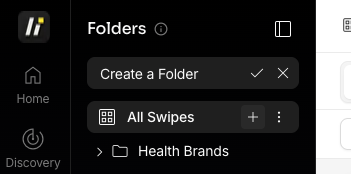
Click the + icon in your sidebar
Select Create Folder
Name it
Click the Check Mark Icon
To rename or delete: click → (⋮) Click Edit to Rename or Delete to Delete a folder.
Deleting a folder gives you two options:
Delete folder only (boards return to root sidebar) or delete folder + everything inside (boards and their ads gone). Default is the safer one. Double-check before confirming.
Organize ads using Boards
Every ad you save lives in a board. An ad can live in multiple boards at once (boards are tags, not folders). Use them however your weekly cycle demands:
Per offer — one board per product you’re running ads for
Per niche — skincare-winners, saas-hooks, fitness-ugc
Per test cycle — week-47-curiosity-hooks (kill at end of cycle, archive)
Per teammate — when a designer or VA owns a workflow
Per pattern — cold-open-confessional, before-after-static
There’s no right way.
Find the rhythm that survives 6 weeks. If you’re not opening a board after 6 weeks, kill it.
Create a board
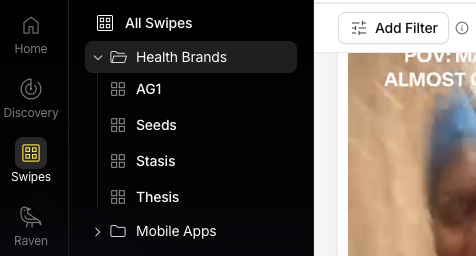
Click the + icon in your sidebar
2. Select Create Board
3. Name it (keep names searchable — operators search boards more than they browse)
4. Click Create Board
Assigning ads to boards
Click the board dropdown under any saved ad. Pick one — or multiple. Boards apply instantly, no save button.
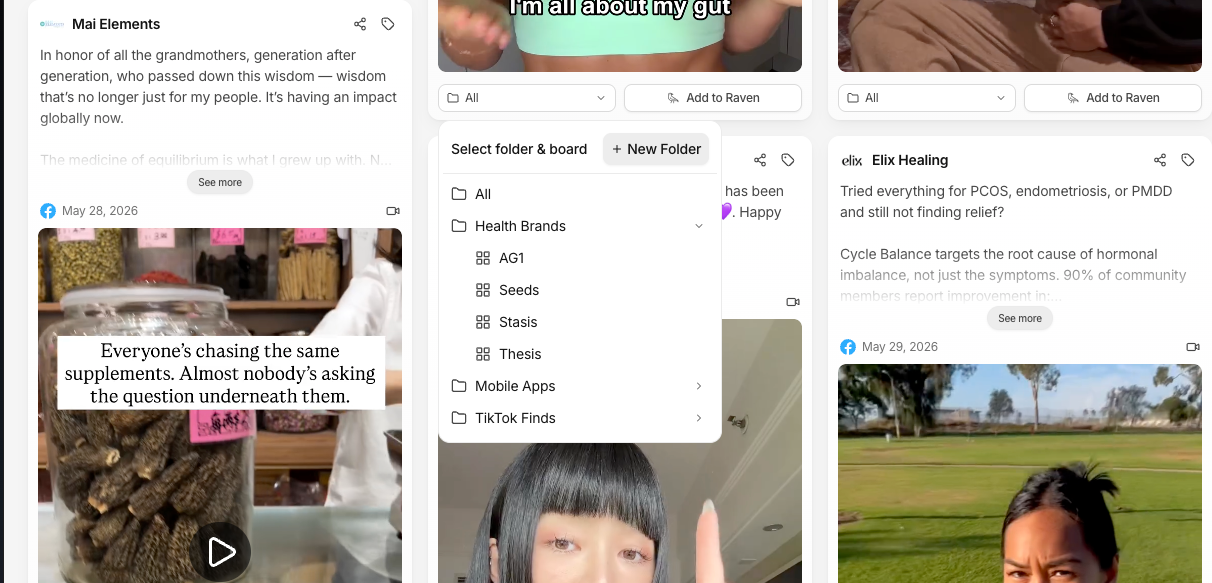
One ad in 4 boards counts as 1 ad in your storage. Tagging is cheap. Use it.
How to share board or a folder
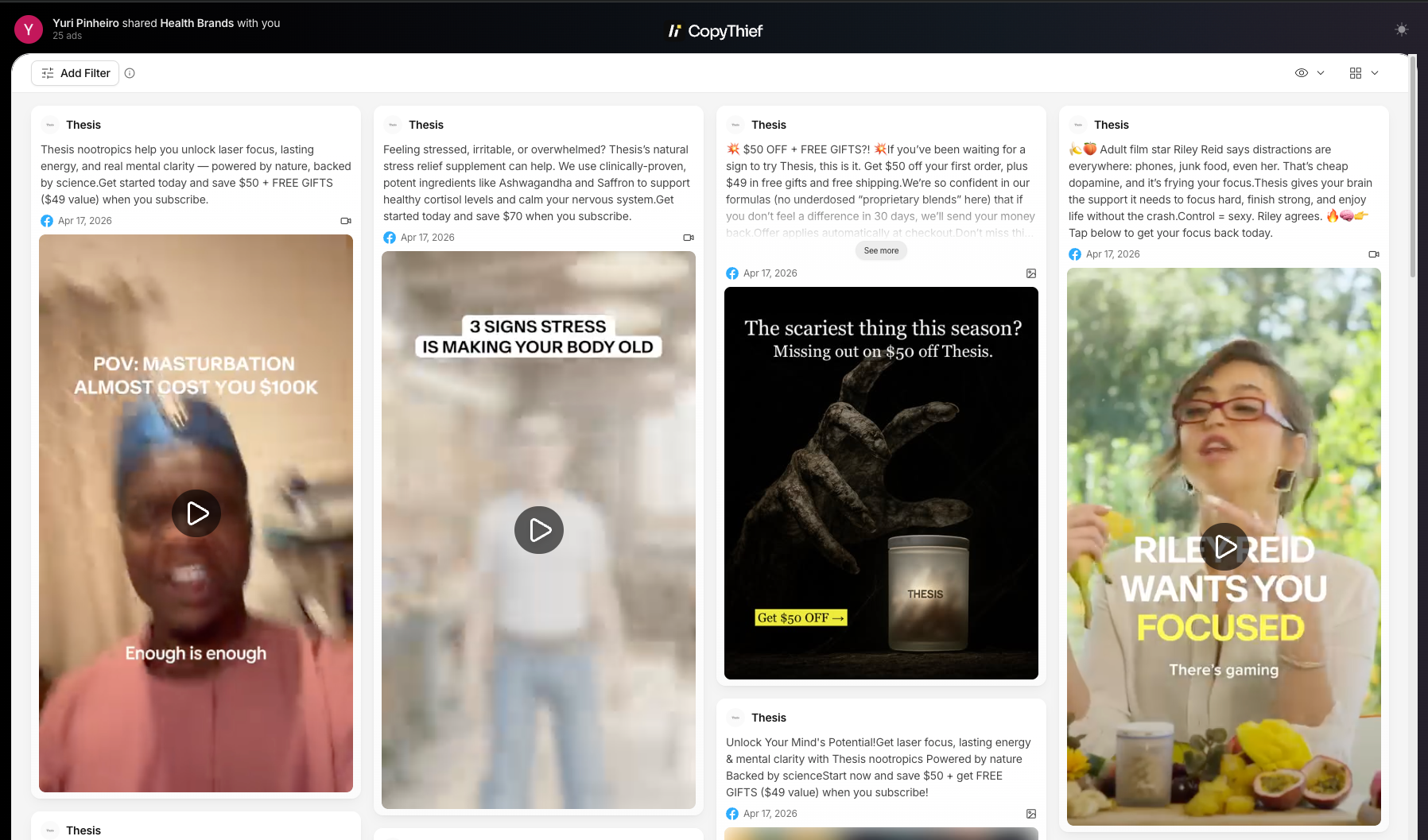
Folder and boards are publicly shareable in one click. Useful when you want a designer, freelancer, or partner to see your full reference set without giving them an account.
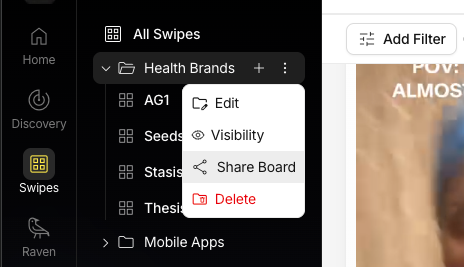
Select a folder from the sidebar
click → (⋮)
Click the Share button
This copies a public link to your clipboard
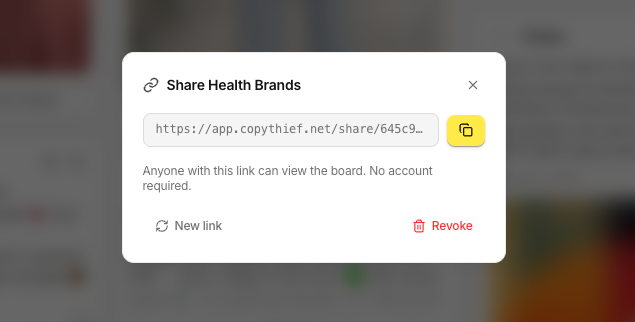
3. Send the link to anyone no account needed
The shared view shows every ad in the folder, plus any comments.
Tags and ratings stay private to your workspace.
Want shared links branded with your domain instead of copythief.com?
See White Label Settings.
Tips to organize your Swipes
A few rules that separate operators who use Swipes from operators who drown in it:
Tag at save-time. “I’ll organize later” is how Swipes becomes a graveyard.
Use one board per active test cycle. When the test ends, archive the board, start a new one.
Don’t create a board for everything. If you’d need to think for >5 seconds to pick a board, you have too many.
Multi-tag aggressively. An ad can be winner + curiosity-hook + competitor-x simultaneously. That’s the point.
Pro tip: pair this with Tags & Ratings and Filters & Sorting. Boards are macro (what’s it for?), tags are micro (what’s the pattern?), filters are how you query the combo.
FAQ
Can a single ad live in multiple boards?
Yes. Boards = tags. Tag aggressively.
Can I rearrange boards inside a folder?
Drag and drop in the sidebar.
What happens if I delete a board?
You’ll be asked: delete the board only (ads return to unsorted Swipes — safe) or delete the board AND every ad inside (irreversible).
Is there a limit on boards or folders?
No hard limits. Create what you need.
Can I nest folders inside folders?
Not currently. One level of nesting. If you find yourself wanting nested folders, you probably have too many boards — consolidate.